


Performance Comparison
Report Comparing CrazyCopy’s Performance against Window File Explorer
Introduction
The following are real tests that were run on 3 different PCs, each with a Windows Installation. CrazyCopy was a fresh install and has either 2 or 3 different thread settings per machine.
Each Test was run 3 times and the times for the test to complete recorded in seconds. The average time of the 3 runs is the timing shown below. Also shown are the minimum and maximum times.
Perforance Test Results
Machine 1 (For Spec See Below)
Copy From Internal SSD Drive to Same Internal SSD
Optimisations : 8 threads is a good trade off on this PC, although 23 is much faster
| Drive Copied From (Internal SSD) | Drive Copied To (Same Internal SSD) | PCSee Spec Above (Threads) | Windows Copy (Seconds) | CrazyCopy (Seconds) | CrazyCopy vs Windows (% Time Saved) | CrazyCopy is This Amount Faster |
| PCIe Gen 5 SSD NTFS-L Indexing OFF Write Caching ON | Same Drive-L | 1 (5 Threads) | 251 281 270 (160 MB/s) Average=267 | 33 33 33 Avg=33 | 87% | x8 Faster |
| PCIe Gen 5 SSD NTFS-L Indexing OFF Write Caching ON | Same Drive-L | 1 (8 Threads) | 267 | 28 27 27 Avg=27.8 | 89% | x10 Faster |
| PCIe Gen 5 SSD NTFS-L Indexing OFF Write Caching ON | Same Drive-L | 1 (23 Threads) | 267 | 23 24 23 Avg=23.8 | 92% | x12 Faster |
| PCIe Gen 4 SSD NTFS-D Indexing OFF Write Caching ON | Same Drive-D | 1 (5 Threads) | 321 320 319 (150MB/s) Average=320 | 37 34 36 Avg=37.2 | 89% | x9 Faster |
| PCIe Gen 4 SSD NTFS-D Indexing OFF Write Caching ON | Same Drive-D | 1 (8 Threads) | 320 | 28 29 29 Avg=29.1 | 91% | x11 Faster |
| PCIe Gen 4 SSD NTFS-D Indexing OFF Write Caching ON | Same Drive-D | 1 (23 Threads) | 320 | 19 23 19 Avg=20.6 | 94% | x16 Faster |
Copy from Internal SSD to Different Internal SSD
Optimisations : 8 threads is a good trade off on this PC
| Drive Copied From (Internal SSD) | Drive Copied To (Differnet Internal SSD) | PCSee Spec Below (Threads) | Windows Copy (Seconds) | CrazyCopy (Seconds) | CrazyCopy vs Windows (% Time Saved) | CrazyCopy is This Amount Faster |
| PCIe Gen 5 SSD NTFS-L Indexing OFF Write Caching ON | PCIe Gen 4 SSD NTFS-D Indexing OFF Write Caching ON | 1 (5 Threads) | 235 266 280 (170 MB/s) Avg=260 | 30 29 30 Avg=30.4 | 88% | x9 Faster |
| PCIe Gen 5 SSD NTFS-L Indexing OFF Write Caching ON | PCIe Gen 4 SSD NTFS-D Indexing OFF Write Caching ON | 1 (8 Threads) | 260 | 25 25 24 Avg=25.1 | 90% | x10 Faster |
| PCIe Gen 5 SSD NTFS-L Indexing OFF Write Caching ON | PCIe Gen 4 SSD NTFS-D Indexing OFF Write Caching ON | 1 (23 Threads) | 260 | 24 25 24 Avg=24.6 | 91% | x11 Faster |
| PCIe Gen 4 SSD NTFS-D Indexing OFF Write Caching ON | PCIe Gen 5 SSD NTFS-L Indexing OFF Write Caching ON | 1 (5 Threads) | 265 312 305 (155 MB/s) Avg=294 | 35 35 34 Avg=35.2 | 88% | x8 Faster |
| PCIe Gen 4 SSD NTFS-D Indexing OFF Write Caching ON | PCIe Gen 5 SSD NTFS-L Indexing OFF Write Caching ON | 1 (8 Threads) | 294 | 27 27 27 Avg=27.1 | 91% | x11 Faster |
| PCIe Gen 4 SSD NTFS-D Indexing OFF Write Caching ON | PCIe Gen 5 SSD NTFS-L Indexing OFF Write Caching ON | 1 (23 Threads) | 294 | 22 21 22 Avg=22.1 | 93% | x13 Faster |
Machine 2
Copy from Internal SSD to Same Internal SSD
Optimisations : 8 Threads is a good trade off for this PC
| Drive Copied From (Internal SSD) | Drive Copied To (Internal HDD) | PCSee Spec Below (Threads) | Windows Copy (Seconds) | CrazyCopy (Seconds) | CrazyCopy vs Windows (% Time Saved) | CrazyCopy is This Amount Faster |
| PCIe Gen 4 SSD NTFS-C Indexing ON Write Caching ON | Same Drive-C | PC 2 (5 Threads) | 241 258 244 (185 MB/s) Average=248 | 37 36 37 Avg=37.1 | 85% | x7 Faster |
| PCIe Gen 4 SSD NTFS-C Indexing ON Write Caching ON | Same Drive-C | PC 2 (8 Threads) | 248 | 30 31 30 Avg=30.8 | 88% | x8 Faster |
Copy from Internal SSD to Internal HDD
Optimisations : 5 Threads is the best for this PC if one of the drives is a Hard Disk
| Drive Copied From (Internal SSD) | Drive Copied To (Internal HDD) | PCSee Spec Below (Threads) | Windows Copy (Seconds) | CrazyCopy (Seconds) | CrazyCopy vs Windows (% Time Saved) | CrazyCopy is This Amount Faster |
| PCIe Gen 4 SSD NTFS-C Indexing ON Write Caching ON | HDD SATA 6200 RPM-R Indexing ON Write Caching ON | PC 2 (5 Threads) | 398 380 390 (150 MB/s) Average=389 | 251 244 258 Avg=251 | 36% | x 1.5 Faster |
| PCIe Gen 4 SSD NTFS-C Indexing ON Write Caching ON | HDD SATA 6200 RPM-R Indexing ON Write Caching ON | PC 2 (8 Threads) | 389 | 253 252 254 Avg=253 | 35% | x 1.5 Faster |
| PCIe Gen 4 SSD NTFS-C Indexing ON Write Caching ON | HDD SATA 6200 RPM-E Indexing OFF Write Caching ON | PC 2 (8 Threads) | 388 | 330 338 336 Avg = 334 | 16% | x 1.1 Faster |
| PCIe Gen 4 SSD NTFS-C Indexing ON Write Caching ON | HDD SATA 6200 RPM-I Indexing OFF Write Caching OFF | PC 2 (5 Threads) | 394 | 241 246 240 Avg = 242 | 62% | x 1.6 Faster |
Copy from Internal HDD to Internal SSD
Optimisations : 5 Threads is the best for this PC
| Drive Copied From (Internal HDD) | Drive Copied To (Internal SSD) | PC | Windows Copy (Seconds) | CrazyCopy (Seconds) | CrazyCopy vs Windows (% Time Saved) | CrazyCopy is This Amount Faster |
| HDD SATA 6200 RPM-R Indexing ON Write Caching ON | PCIe Gen 4 SSD NTFS-C Indexing ON Write Caching ON | PC 2 (5 Threads) | 585 584 585 (120 MB/s) Average=585 | 565 560 555 Avg = 560 | 5% | Same Speed |
| HDD SATA 6200 RPM-R Indexing ON Write Caching ON | PCIe Gen 4 SSD NTFS-C Indexing ON Write Caching ON | PC 2 (8 Threads) | 585 | 635 610 616 Avg = 620 | 6% Slower | x 0.95 |
Machine 3
Copy from Internal SSD to Same Internal SSD
Optimisations : For a low spec machine with a SATA drive, 2 Threads seems the best choice.
| Drive Copied From (Internal SSD) | Drive Copied To (Internal HDD) | PC | Windows Copy(Seconds) | CrazyCopy (Seconds) | CrazyCopy vs Windows (% Time Saved) | CrazyCopy is This Amount Faster |
| M.2 SATA SSD NTFS Indexing ON Write Caching ON | Same Drive-D | PC 3 (2 Threads) | 1069 | 518 | 51.5% | x2.1 Faster |
| M.2 SATA SSD NTFS Indexing ON Write Caching ON | Same Drive-D | PC 3 (4 Threads) | 1069 | 479 | 55% | x2.2 Faster |
Test Setup
Each run of tests on a machine has the exact same setup of that machine, nothing is changed between test runs. For every measurement run, the following is first performed
- Clean Fresh CrazyCopy Install of the same CrazyCopy Version currently in the Store – No previous logs, user.config etc.
- Cold Power Cycle of the Windows System (Wait 10 seconds for SSD Capacitors to disharge in case of any previous cache)
- Boot Windows and Start Crazy Copy and Open Windows File Explorers showing the destination folder
- Open the Windows standard Stopwatch (Clock) pre-installed application for measuring the timing of the test runs
- Windows Configuration
Woooahh – Real-Time Protection Virus Checking is OFF? Yes, as we are not testing how quickly the machines CPU can read a file into memory and scan it for thousands of virus patterns, we are testing the time files can be copied from one location to another. Besides, if the files are already on your PC they have probably been virus checked already. If files are being copied from an external drive i.e. USB drive, or M.2 enclosure, SD card etc, use your AV if these are being connected to this PC for the first time with these files, or unless Windows has been configured with antivirus folder exceptions enabled and the files you are copied are in those folders. When I copy files around on any Windows system (that are already on the PC), I turn off real-time virus checking, Windows will automatically turn it back on soon enough anyway.
Indexing is a personal choice, I dont use it except for on my C:\ windows install partition. I have indexing disabled for all other partitions. I dont want a “faster” file contents search, not at the expense of the search service permanetly running in the background, thrashing my drives, it’s too expensive, and a waste of CPU cycles that I want to use for real processing.
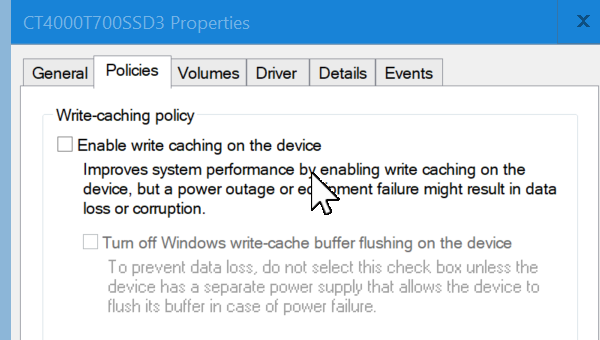
Write Caching isn’t deterministic as far as I can tell and I dont really understand fully how it could change the metrics, so I’ve turned it off for some drives and left it on for others. It’s probably storing files in a faster memory rather than writing directly to persistent media (NAND etc), which means the disk can report back to the OS with a faster “successful” write response. The media (NAND etc), write is slower than DDR memory for example (if the device has any). The write from the cache to the persistent media is then performed after the OS has been informed the write succeeded. On an SSD, if it has them, capacitors guarantee the device has enough power to flush the cache to persistent media with no files are lost, in the event of a sudden power loss.
So in conclusion, most disks have indexing off, write cache is on and off below, but the anti virus real time protection is always off.
As the same PCs are used to run both Windows Copy and CrazyCopy for comparison, no changes in any of the config or setup is made once the benchmarking starts. This includes those annoying Windows updates! All the machines had all the latest updates applied prior to testing.
Each test run uses the exact same folder as the Source, and Copies or Moves it to the exact same Destination folder (once previous copies of the Source have been removed), for the same test.
Each Measurement
The source folder contains various contents, comprising of different file types and folder depths. The test folder contains the following
- Normal Files
- Symbolic Links (Requires NTFS)
- Junctions (Requires NTFS)
- Shortcuts (Requires NTFS)
- Folders
Test Machines
The following machines are used for the test measurements
1st Machine with Windows 10 Pro – Highest Spec
| Type | Configuration/Hardware |
| Operating System | Windows 10 Pro |
| OS Build Version | 10.0.19045 Build 19045 |
| Processor Type | AMD Ryzen 9 9950X3D 4300 Mhz |
| Number of Cores | 16 Core(s) |
| Number of Logical Processors | 32 Logical Processor(s) |
| Motherboard | ASUS ROG CROSSHAIR X670E HERO |
| Installed Physical Memory (RAM) | 96.0 GB |
| Motherboard Supported Storage | SSD – M.2 NVMe PCIe Gen 5 x 4 (~12 to 15 GB/s) – L DriveSSD – M.2 NVMe PCIe Gen 4 x 4 (~5 to 7 GB/s) – D Drive |
2nd Machine with Windows 11 Pro – High Spec
| Type | Configuration/Hardware |
| Operating System | Windows 11 Pro |
| OS Build Version | 26200 |
| Processor Type | Intel(R) Core(TM) i9-14900K |
| Number of Cores | 24 |
| Number of Logical Processors /Hardware Threads | 32 |
| Motherboard | MSI MAG B760M MORTAR WIFI II (MS-7E13) |
| Installed Physical Memory (RAM) | 96 GB |
| Motherboard Supported Storage | SSD – M.2 NVMe PCIe Gen 4 x 4 (~5 to 7 GB/s)HDD – SATA III / SATA 6 Gb/s (~500 to 600 MB/s) |
3rd Machine Laptop – Windows 10 Pro – Low Spec
Dell Latitiude E7470
| Type | Configuration/Hardware |
| Operating System | Windows 10 Pro |
| OS Build Version | 10.0.19045 Build 19045 |
| Processor Type | Intel Core i7 6600U @ 2.6 GHz |
| Number of Cores | 2 Core(s) |
| Number of Logical Processors/ Hardware Threads | 4 Threads |
| Motherboard | Dell |
| Installed Physical Memory (RAM) | 8 GB |
| Motherboard Supported Storage | SSD – M.2 SATA III (~0.6 GB/s or 6 Gb/s) |
Disk and Storage Types
The SSDs and HDDs are configured as follows
- All SSD and HDD drives are formatted as NTFS, with the Partiton Type GPT (GUID Partition Table)
- For most SSDs and some HDDs indexing is Disabled
- Some have write caching Disabled
For the SSD drives the temperature was monitored throughout all tests to ensure thermal throttling did not start. Thermal throttling is a feature used to prevent SSD drives from overheating by slowing the device down to allow it to cool, but this also lowers throughput. Like most electronics, SSD drives becomes hot with continuous, fast usage. High temperatures can damage a drive once, so above around 80oC most drives will perform an emergency shutdown. Before this though at around 70oC (depending on the drive), most SSDs will throttle to cool themselves down in order to avoid an emergency shutdown or being damaged. The SSD reduces the throughput performance of the device until it has cooled adequately. If a drive started throttling during a performance test then the timing results would be pretty useless. Adequate cooling passive or active will prevent a drive from throttling.
All SSDs use their own supplied heatsinks, or if available the heatsink in the motherboard.
Machine 1
| Drive | Type | Brand and Product Name | SKU | Motherboard Slot/Gen | Capacity |
| L | Internal M.2 SSD | Crucial T700 – PCIe Gen 5 | CT4000T700SSD3 | PCIe Gen 5 | 4 TB |
| D | Internal M.2 SSD | XPG GAMMIX S70 BLADE – PCIe Gen 4 | AGAMMIXS70B-4T-CS | PCIe Gen 4 | 4 TB |
Machine 2
| Drive | Type | Brand and Product Name | SKU | Motherboard Gen | Capacity |
| C | Internal M.2 SSDWrite Caching ONIndexing ON | XPG GAMMIX S70 BLADE – PCIe Gen 4 | AGAMMIXS70B-4T-CS | PCIe Gen 4 | 4 TB |
| R | Internal HDD CMR Write Caching ONIndexing ON | Seagate IronWolf 3.5″ 7200 RPM 256MB Cache | ST12000VN0008 | SATA III 6Gb/s | 12 TB |
| I | Internal HDD CMR Write Caching ONIndexing OFF | Seagate IronWolf 3.5″ 7200 RPM 256MB Cache | ST12000VN0008 | SATA III 6Gb/s | 12 TB |
| E | Internal HDD CMRWrite Caching ONIndexing OFF | Seagate IronWolf 3.5″ 7200 RPM 256MB Cache | ST12000VN0008 | SATA III 6Gb/s | 12 TB |
Machine 3
| Drive Letter | Type | Brand and Product Name | SKU | Motherboard Gen | Capacity |
| C | Internal SATA SSDWrite Caching ONIndexing ON | Sandisk X400 M.2 | SD8SN8U-256G-1122 | SATA III 6Gb/s | 256 GB |
Test Folder Contents
The total number of files is 150,015, and the size is 45 GiB
Golden_1      150,000 files
TestingCC     link/shortcut/reparse test objects
----------------------------------------------------
Normal files   150,015
Folders        5,020
Normal data    ~45.7 GiB
For a more detailed list see end of page.
Complete File List in Test Folder
The following files and folders are the source folder for all the above SSD and HDD tests
Golden_1      150,000 files
TestingCC     link/shortcut/reparse test objects
----------------------------------------------------
Normal files   150,015
Folders        5020
Normal data    ~45.7 GiB

Full List Below

L:\Golden_CC_Benchmark_Source_Folders\
│
├── Golden_All\
│   │
│   ├── Golden_1\
│   │   │
│   │   ├── Folder_000001\
│   │   │   ├── File_000001_512000_bytes.bin        500 KB
│   │   │   ├── File_000002_512000_bytes.bin        500 KB
│   │   │   ├── File_000003_512000_bytes.bin        500 KB
│   │   │   └── ... 27 more files
│   │   │
│   │   ├── Folder_000002\
│   │   │   └── ... 30 files
│   │   ├── Folder_000003\
│   │   ├── Folder_000004\
│   │   ├── Folder_000005\
│   │   ├── Folder_000006\
│   │   ├── Folder_000007\
│   │   ├── Folder_000008\
│   │   ├── Folder_000009\
│   │   ├── Folder_000010\
│   │   └── ... 4990 more folders
│   │
│   │   5,000 folders
│   │   30 files per folder
│   │   150,000 files total
│   │   500 KB per file
│   │   ~45.7 GiB
│   │
│   │
│   └── TestingCC\
│       │
│       ├── InternalLinks\
│       │   │
│       │   ├── FileLinkInternalRel\
│       │   │   └── FileLinkInternalRel.txt
│       │   │
│       │   ├── FileLinkInternalNonRel\
│       │   │   └── FileLinkInternalNonRel.txt
│       │   │
│       │   ├── DirLinkInternalRel\
│       │   │   └── DirLinkInternalRel.txt
│       │   │
│       │   ├── DirLinkInternalNonRel\
│       │   │   └── DirLinkInternalNonRel.txt
│       │   │
│       │   ├── JunctionsInternalNonRel\
│       │   │   └── JunctionsInternalNonRel.txt
│       │   │
│       │   ├── ShortcutDirInternalNonRel\
│       │   │   └── ShortcutDirInternalNonRel.txt
│       │   │
│       │   └── ShortcutFileInternalNonRel\
│       │       └── ShortcutFileInternalNonRel.txt
│       │
│       ├── FileLinks\
│       │   ├── FileLinkInternalRel.txt
│       │   │      [relative file symbolic link -> internal target]
│       │   ├── FileLinkExternalRel.txt
│       │   │      [relative file symbolic link -> external target]
│       │   ├── FileLinkInternalNonRel.txt
│       │   │      [absolute file symbolic link -> internal target]
│       │   └── FileLinkExternalNonRel.txt
│       │          [absolute file symbolic link -> external target]
│       │
│       ├── DirLinks\
│       │   ├── DirLinkInternalRel
│       │   │      [relative directory symbolic link -> internal target]
│       │   ├── DirLinkExternalRel
│       │   │      [relative directory symbolic link -> external target]
│       │   ├── DirLinkInternalNonRel
│       │   │      [absolute directory symbolic link -> internal target]
│       │   └── DirLinkExternalNonRel
│       │          [absolute directory symbolic link -> external target]
│       │
│       ├── Junctions\
│       │   ├── JunctionInternalNonRel
│       │   │      [junction -> internal target]
│       │   └── JunctionExternalNonRel
│       │          [junction -> external target]
│       │
│       ├── Shortcuts\
│           ├── ShortcutDirInternalNonRel.lnk
│           ├── ShortcutDirExternalNonRel.lnk
│           ├── ShortcutFileInternalNonRel.lnk
│           └── ShortcutFileExternalNonRel.lnk
│
│
└── Golden_All_ExternalLinks\          <-- NOT INSIDE Golden_All
    │
    ├── FileLinkExternalRel\
    │   └── FileLinkExternalRel.txt
    │
    ├── FileLinkExternalNonRel\
    │   └── FileLinkExternalNonRel.txt
    │
    ├── DirLinkExternalRel\
    │   └── DirLinkExternalRel.txt
    │
    ├── DirLinkExternalNonRel\
    │   └── DirLinkExternalNonRel.txt
    │
    ├── JunctionsExternalNonRel\
    │   └── JunctionsExternalNonRel.txt
    │
    ├── ShortcutDirExternalNonRel\
    │   └── ShortcutDirExternalNonRel.txt
    │
    └── ShortcutFileExternalNonRel\
        └── ShortcutFileExternalNonRel.txt