


If you can’t figure out why an operation is prohibited or prevented, or why an error is occurring, scan through this section for some pointers on what might be causing it.
There is a full list of CrazyCopy’s Unsupported Operations on this page
There is a also a Frequently Asked Questions page on this page
Where are my Context Menu FOLDER Copy and Moves BEING COPIED OR MOVED TO ?
CrazyCopyCLIexe is the process used for context menus, not CrazyCopy.exe (which is for the GUI application). This way CrazyCopy can supports 2 almost parallel installations, with 2 distinct user settings. One user config is used from the GUI application, and one when used from context menu callbacks.
To find where the Context Menu is copying or moving folders use the CLI command
CrazyCopyCLI.exe –info
C:\Users\marcu>CrazyCopyCLI.exe --info

CrazyCopy Version: 1.0.82.0
Complete Command Line Was: CrazyCopyCLI.exe  --info
SUCCESS: --info Called From Command Line
Current Threads To Use: 2
Current Destination: D:\destination
We can see above that any folders being copied or moved will go to the D:\destination folder. Of course to change this folder simply use the
CrazyCopyCLI.exe –destination “d:\new path”
C:\Users\marcu>mkdir "d:\new path"

C:\Users\marcu>CrazyCopyCLI.exe --destination "D:\new path"

CrazyCopy Version: 1.0.82.0
Complete Command Line Was: CrazyCopyCLI.exe  --destination "D:\new path"
Called Set Destination From Context Menu or CLI
=== SUCCESS ===
Context Menu Completed Setting the Destination: D:\new path

C:\Users\marcu>CrazyCopyCLI.exe --info

CrazyCopy Version: 1.0.82.0
Complete Command Line Was: CrazyCopyCLI.exe  --info
SUCCESS: --info Called From Command Line
Current Threads To Use: 2
Current Destination: D:\new path
Can’t Drag and Drop onto the Source or Destination Text Entry Boxes
If CrazyCopy is running elevated and File Explorer is not elevated, Windows does not allow drag and drop between them. This can sometimes occur when running the GUI from the Command Line from an Admin terminal.
Can’t Copy Over a Folder
If the Final Destination Folder already exists where you are trying to copy a Source Folder, then CrazyCopy will only allow it if the Copy Over option is enabled. This option protects any existing files and folders so they can not be overwritten by a Copy that would cause a folder merge. If you are certain that you really want to Copy Over or Merge an existing Final Destination Folder, then simply enable the Copy Over option and try again.
Copy Over is not supported if the Source Folder or any of its subfolder have NTFS Case Sensitivity enabled.
Copy Fails due to Files Already Exist
If the Final Destination Folder already exists then Copy Over must be enabled in order to perform a Copy. A Move operation is always prohibited if the Final Destination Folder already exists.
If however a Source Folder contains any folders with Case Sensitive naming enabled, the user will get an error if two or more files with duplicate names are copied from the same Source Folder (and have different case). If the Destination Folder doesn’t also have Case Sensitive naming enabled, then when the Source files are written to the Destination Folder, both files will be considered equivalent, and CrazyCopy will throw an error explaining that Copy Over must be enabled to do this. If the user really does want to Copy a Source Folder that contains case sensitive folders, then they must ensure the following :
- Copy Over is Disabled
- Destination Folder has Case Sensitive Naming enabled (therefore it must be an NTFS type of disk)
- Windows version must support per folder Case Sensitive Naming
- Case Sensitive Naming must be enabled in Windows
Then when the Source Folder is copied, the case sensitive names will be supported in the Destination folder, with any new folders copied from the Source retaining their case sensitive flag, allowing duplicate files to co-exist in the same Destination Folder. Note that it is not enough to just enable Case Sensitive naming in the Destination folder, the OS must be able to support it as well.
Consider a USB Thumb drive that has 2 folders created in an OS that supports case sensitive naming and it is also enabled. The OS can create one folder that will be a Source Folder with folder level case sensitive naming, and another folder that will be the Destination Folder, also with folder level case sensitive naming enabled. Now that USB thumb drive is removed from the OS version, and the USB is plugged into a different PC wihere the OS doesnt have case sensitive naming enabled. Therefore it wil not be able to create any folders with case sensitive naming support. If a Copy is performed from the Source to the Destination, the Final Destination Folder can not have case sensitive naming support enabled, even though the Source folder has it enabled. Therefore the Copy operation will fail if 2 or more files in the same Source folder are written to a subfolder of the Final Destination Folder. If this happens, then ensure the 4 pre-requisites above are satisified, and then retry the operation.
Can’t Move a Folder Over Another Folder
If a folder already exists where you are trying to move a Source Folder, then CrazyCopy will not allow the operation. A Move cannot overwrite or merge with an existing Final Destination Folder. This restriction applies whether Safe Move is enabled or disabled. Copy Over only applies when Copying, not Moving.
Can’t Move a Folder to another Drive or Volume
CrazyCopy has two ways to Move a folder. Safe Move is used for folders that must be moved between different drive letters (volumes). If you are moving a folder and the drive letter is different, the OS Move does not support this, so you must enable Safe Move.
Why is a File Lock stopping the Copy or Move?
Windows applications and services can open files in a way that prevents other processes from accessing them, including just reading the file. If CrazyCopy attempts to Copy or Move a Source Folder that contains a file that is currently locked in this way the operation will fail with an error similar to:
The process cannot access the file ‘D:\\Projects19\\Vis Studio 2026\\crazycopy\\.vs\\CrazyCopy\\FileContentIndex\\34c05899-dacb-4a7a-88a9-cc8fdbe726ba.vsidx’ because it is being used by another process.
CrazyCopy, like other applications, cannot bypass this type of file lock, which stops CrazyCopy Copying or Moving the file. The process that currently has the file open must release the lock before CrazyCopy can successfully access the file and complete the Copy or Move of the Source Folder. If this error occurs, identify the application or service that has locked the file using a tool such as
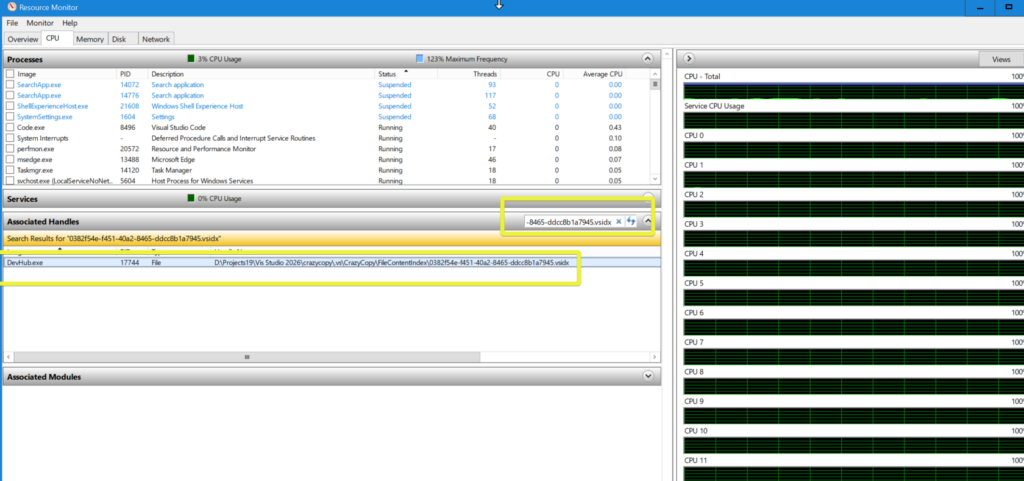
Resource Monitor (resmon.exe) — built into Windows. Go to CPU Tab → Associated Handles and search for part of the filename or path
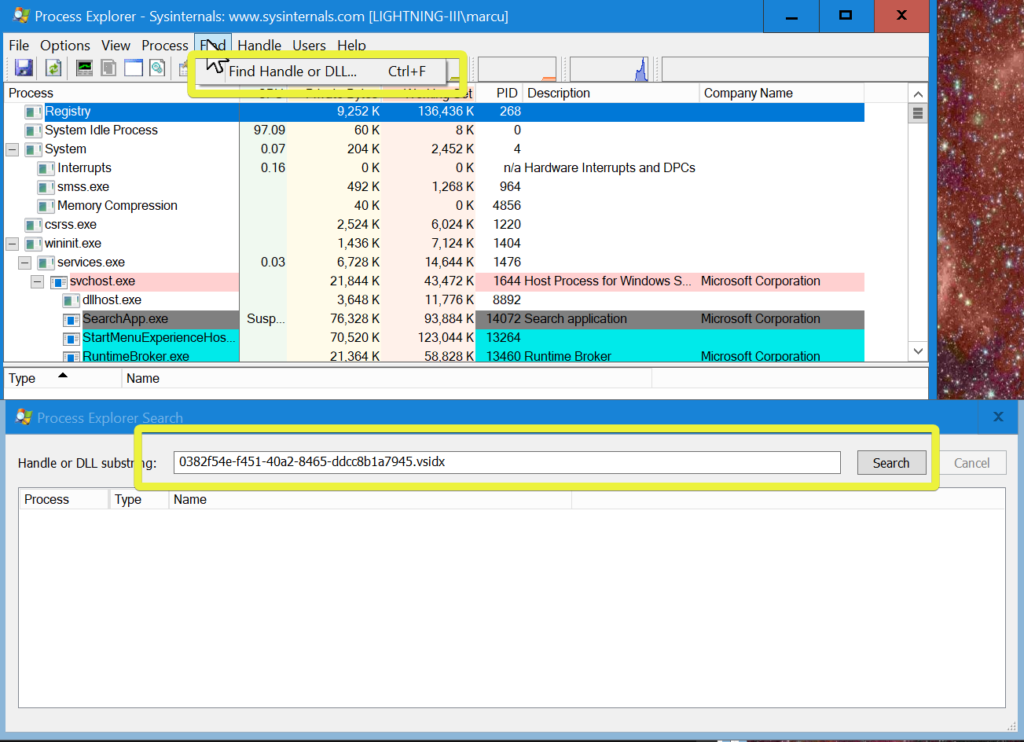
Process Explorer — Microsoft Sysinternals GUI tool. Use Find → Find Handle or DLL… (Ctrl+F) and enter the filename
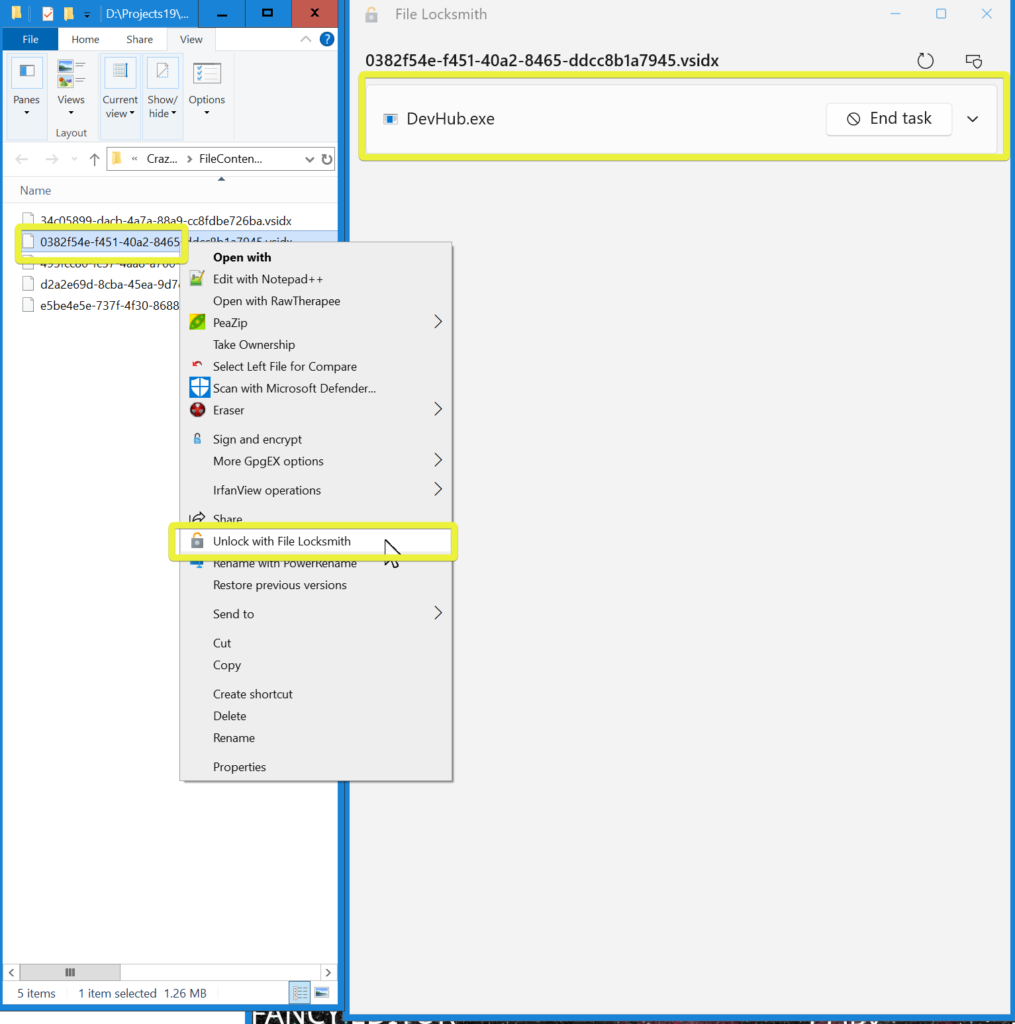
File Locksmith – Right click on file and select Unlock with File Locksmith
Close the process or stop the service. Once the file is no longer locked, retry the CrazyCopy Copy or Move again. See Windows Help for more details on file Locking.
Where are the Log Files?
The location of every System Log file (automatically saved by the application), is in the Local Application Data Folder. This location can never be changed for the automatically saved log files.
Example:
<Path to Users Folder>\Documents\CrazyCopy\Logs
Example:
C:\Users\dave\Documents\CrazyCopy\Logs
Users can also manually save the Log into any folder they like (with permissions). The default folder in the Log Saving dialog is the same as the path above, but if the user saves a log file in another folder then the new folder becomes the default. This means the next time the Log Save dialog is opened, it will default to the new default location. If the new location becomes invalid, then the Log Save dialog will switch to the user’s Documents folder as the new default when opening.
Why can’t I see any errors when a Copy or Move fails?
Dialogs is an option on the Main Window. If Dialogs is not checked (enabled), then no Information or Error Dialogs will be displayed. If a Copy or Move keeps failing then enable Dialogs to get instant feedback from a popup that will explain why it is happening, and also provide a helpful suggestion on how to fix it.
Why does the Log Viewer close when opening the Mini GUI View?
The Mini GUI View is designed to minimise screen real estate. In other words, CrazyCopy should use the minimum amount of screen space possible, while still visually showing whether each operation was successful or not. If the Log Viewer is open from the Main View and the user switches to the Mini GUI View, the Log Viewer closes to provide more screen space. Popup Dialogs can still be seen when the Mini GUI View is open (as long as the Dialogs option is enabled on the Main View), and the Log can also be live streamed if needed.
Why does my Copy Fail in Mini GUI View?
If the Final Destination Folder already exists, then Copy from the Mini GUI View will fail. Copy Over is always turned off while in the Mini GUI View to prevent any accidental overwrites or merges of existing folders.
Why Is My Path Always Rejected for a Move or Copy?
The most common reason a path will be rejected by a Copy or Move is when the Source and Final Destination Folders are the same. However, the Source and Destination paths can be the same. See the Quick Start Guide for the definition of the Final Destination Folder.
Why can’t I Copy a Folder?
Most of the time CrazyCopy will explain why a Folder cannot be copied or is invalid. Here are some of the most common reasons:
- Insufficient Permissions to read the Source Folder
- Insufficient Permissions to write to the Destination Folder
- The Source Folder doesn’t exist
- The Destination Folder doesn’t exist
- The Final Destination Folder already exists (and Copy Over is disabled)
- The Final Destination Folder already exists and in Mini GUI View (Copy Over is always disabled in Mini GUI View)
- The Final Destination Folder would be invalid or the same as the Source Folder
- The Destination Folder is inside the Source Folder
- The Destination Path is too long for the current Windows configuration
- Quotes are being used in the GUI Source or Destination Text Entry Boxes
- Double backslashes are being used as path seperators in the Source or Destination paths
- Quotes are NOT being used around paths containing spaces from the Command Line (CrazyCopy or CrazyCopyCLI)
- Relative Paths have been provided for the Source or Destination
- The Source Folder cannot contain any Cloud Placeholders
- A file inside the Source folder is locked and therefore can not be copied
- A file inside an existing Final Destination Folder is locked and can not be copied over during a Copy Over
- Copy Over is not supported if the Source Folder or any of its subfolder have NTFS Case Sensitivity enabled.
Why can’t I Move a Folder?
Most of the time CrazyCopy will explain why a Folder cannot be moved or is invalid. Here are some of the most common reasons:
- Insufficient Permissions to read the Source Folder
- Insufficient Permissions to delete the Source Folder during a Safe Move
- Insufficient Permissions to write to the Destination Folder
- The Source Folder doesn’t exist
- The Destination Folder doesn’t exist
- The Final Destination Folder already exists
- The Final Destination Folder would be invalid or the same as the Source Folder
- The Destination Folder is inside the Source Folder
- The Destination Path is too long for the current Windows configuration
- Quotes are being used in the GUI Source or Destination Text Entry Boxes
- Double backslashes are being used as path seperators in the Source or Destination paths
- Quotes are NOT being used around paths containing spaces from the Command Line (CrazyCopy or CrazyCopyCLI)
- Relative Paths have been provided for the Source or Destination
- An OS Move (Safe Move disabled) cannot move a Source Folder to a Destination Folder on another volume
- The Source Folder cannot contain any Cloud Placeholders
- A file inside the Source folder is locked and therefore can not be moved
- If folder Move is between different drive letters then Safe Move must be used, OS Move does not support moving folders across drives.
Why is CrazyCopy Telling me the Destination Path is Too Long?
Some Windows configurations do not support long paths by default. Follow Microsoft’s guidance for enabling long-path support if CrazyCopy reports that a Destination path is too long.
CrazyCopy is Telling me the Destination Folder is “Ambiguous”
If WSL is enabled and per folder level case sensitivity is enabled on an NTFS Volume, for simplicity’s sake, CrazyCopy will not allow you to overwrite such a folder with Copy Over if there is more than one Destination Folder with the same name and same path but using different letter case.
This is rare but possible, so worth mentioning in this user guide.
So if this happens
Source : D:\MySource
Destination : D:\Dest
Final Destination : D:\Dest\MySource
If in the above situation these folders already exist, then Copy Over is not allowed:
D:\Dest
D:\dest
The naming is considered ambiguous – choose another folder.
If however
- There is already a Destination Folder
- WSL is enabled
- Destination subfolders have NTFS Case Sensitivity enabled
then the merge will take place. Only exactly matching folders will be copied over. When subfolder names differ only by case, they will not be overwritten, resulting in multiple folders with the same name in the same folder, differing only by their case.